Remove Object from Photo with AI Precision

Brush over distractions or describe an edit to remove objects from your photos. Start with free credits, compare your result, and download it directly from your browser.

Demonstration of removing objects from a photo to erase distractions and seamlessly reconstruct the background
No image ready? Try one of these samples:

or drag and drop an image here

Supported formats:
PNGJPEGJPGWEBP
JPG, JPEG, PNG, or WebP up to 30 MB
No image ready? Try one of these samples:
Practical Cleanup Scenarios

Remove Objects from Photos for Clean Product and Travel Shots

Explore what Remove Object from Photo can do for product catalogs and travel pictures. Drag the sliders to compare each prepared example, paying attention to background textures, surface lighting, and structural edges. Use these scenes as a guide when planning your own edits. Prepared visual examples show how a scene can look after cleanup.

E-Commerce Photography — AfterE-Commerce Photography — BeforeBeforeAfter
E-Commerce Photography

Stray Studio Props

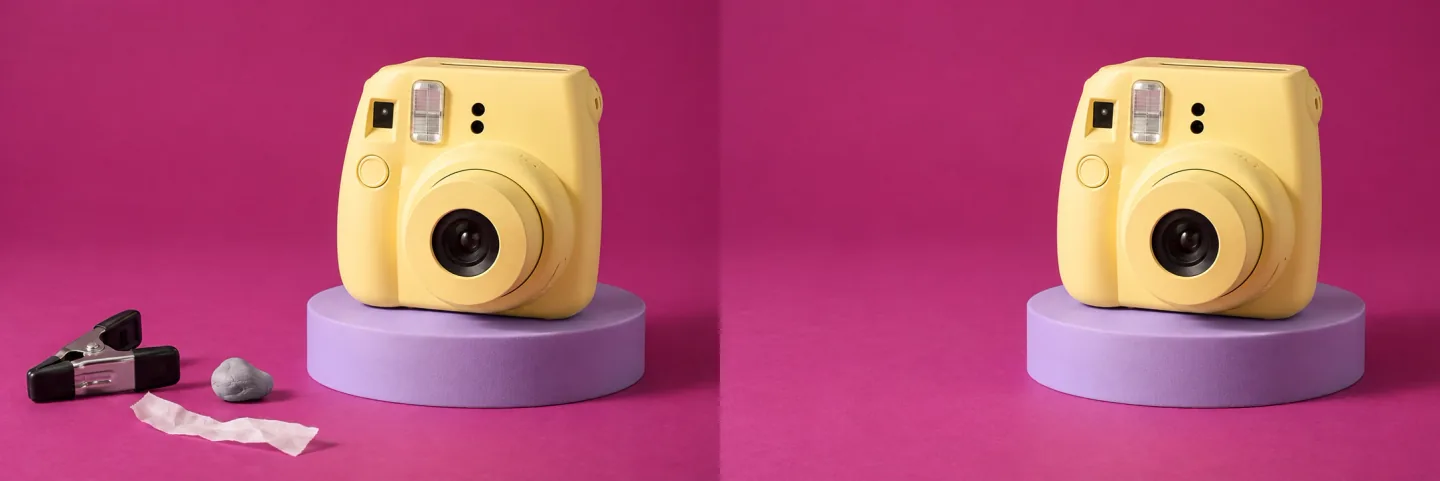
Use Remove Object from Photo to clear staging clips, mounting putty, light stands, and dust from product shots. Brush over the prop and its shadow, then inspect nearby edges and reflections. With Remove Object from Photo, you can review the result before preparing your merchandise images for publication.

Clean up your photo

Packaging & Retail — AfterPackaging & Retail — BeforeBeforeAfter
Packaging & Retail

Price Tags & Stickers

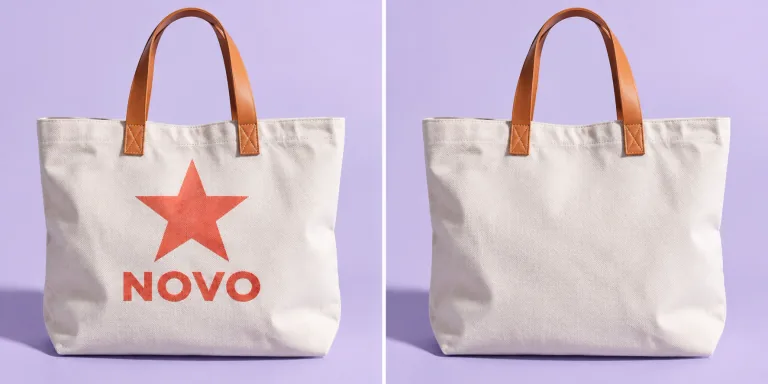
Remove Object from Photo helps clear temporary barcode stickers, warehouse labels, and shelf tags from packaging. Select the label without covering nearby brand graphics. After generating, inspect the cardboard, paper, or plastic surface at full size, especially where the sticker meets printed text or fine details. Results depend on your selected model, source image, and marked area.

Clean up your photo
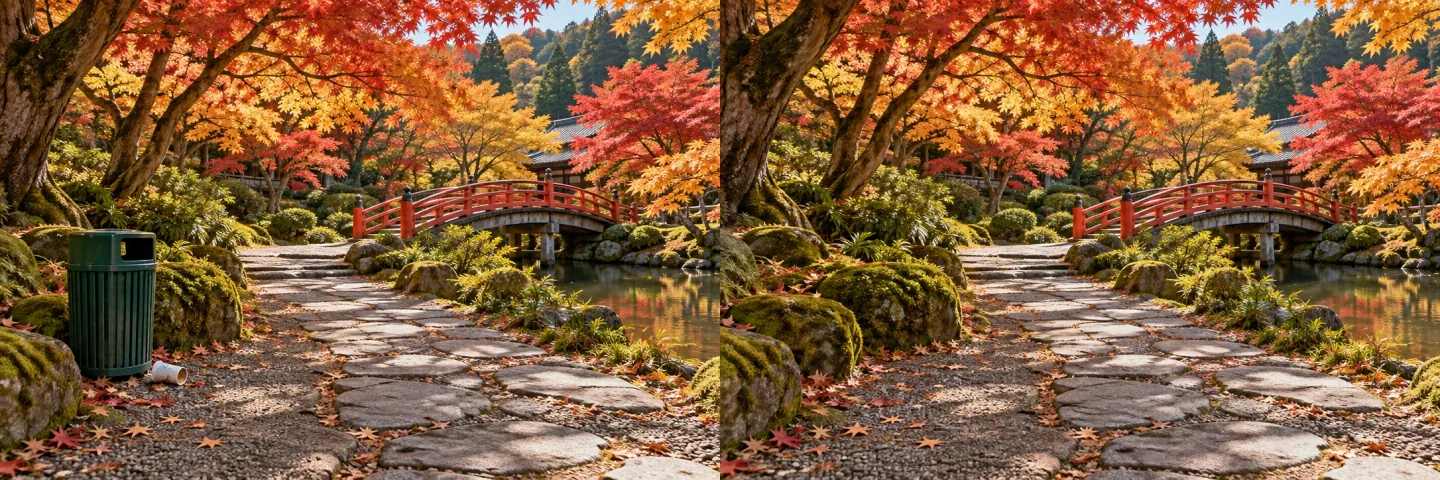
Vacation & Travel — AfterVacation & Travel — BeforeBeforeAfter
Vacation & Travel

Trash Cans & Bins

Use our AI tool to remove objects from photos with bins, barriers, or litter in the foreground. To remove an object from photo backgrounds, brush over both the item and its shadow. Check grass, beach sand, or paving afterward; a smaller selection can help when the first result needs refinement. Compare edges and textures at full size before using the exported file.

Clean up your photo
Street & Architecture — AfterStreet & Architecture — BeforeBeforeAfter
Street & Architecture

Distracting Street Signs

Try Remove Object from Photo on street signs, construction cones, and roadside clutter in architectural shots. Mark the obstruction, then check brickwork, window edges, and paving in the result. Straight lines and repeating patterns deserve a closer look before you download the image.

Clean up your photo
Outdoor Landscapes — AfterOutdoor Landscapes — BeforeBeforeAfter
Outdoor Landscapes

Power Poles & Wires

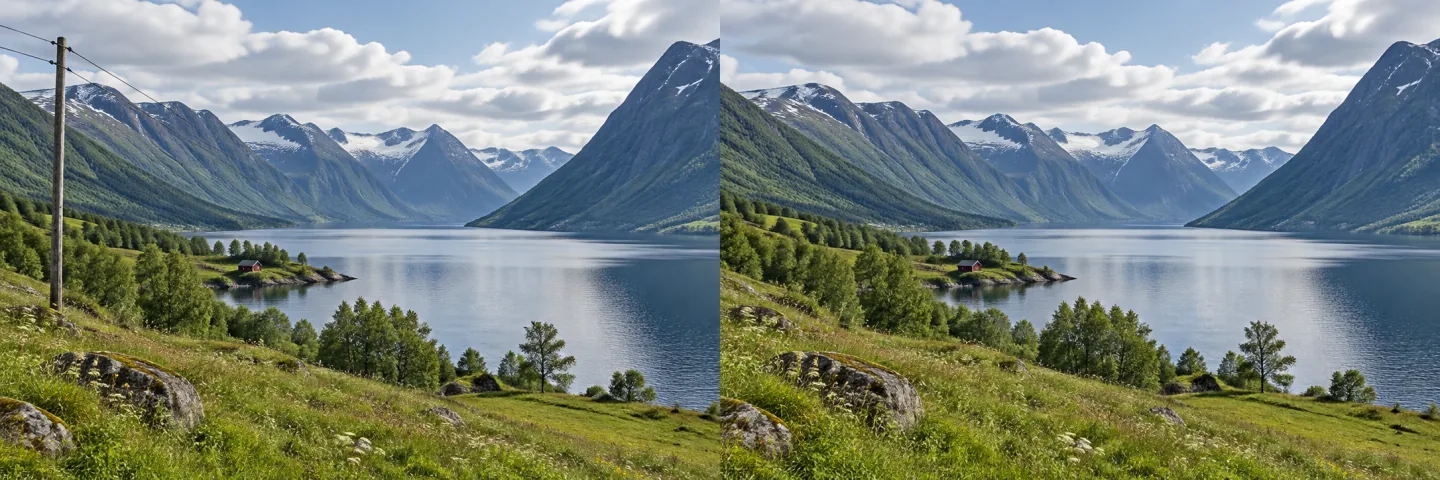
Open your landscape in Remove Object from Photo to clear utility poles and overhead wires. Select the wires along their full length, then inspect the sky and horizon. For branches or mountain edges, try smaller selections and compare the result carefully.

Clean up your photo
Common Questions Answered

Frequently Asked Questions About the Remove Object from Photo Tool

Find answers about Remove Object from Photo, including credit costs, supported formats, privacy, and selection techniques. Review these details before uploading your photo or starting an edit.

For natural results with Remove Object from Photo, start with a careful selection. Extend your brush mask approximately 5 to 10 pixels beyond the object into the surrounding background. This slight overlap gives the model context for blending colors, grain, and lighting at the edges. Include any shadows or reflections cast by the object on floors, tables, or walls; leaving them behind can make the cleared area look unfinished. When using Remove Object from Photo on complex textures, try smaller selections in separate passes. Inspect the result at full size after each edit, particularly around straight lines and repeated patterns, before deciding whether another pass would help.

Unlike traditional clone-stamp tools or smudge brushes that merely blur, stretch, or copy neighboring pixels, our generative diffusion inpainting engine evaluates the semantic context of your entire photograph. It calculates light direction, surface depth, focal blur, and material textures, synthesizing brand-new pixels that logically belong in the cleared space. This means complex backgrounds like natural wood grain, sand ripples, water reflections, and tiled pavement are recreated with convincing physical authenticity. With Ediroo’s Remove Object from Photo editor, the AI reconstructs hidden background details rather than smudging the surrounding area.

Remove Object from Photo works with everyday distractions in travel, street, and product photography. Common targets include photobombers and tourists, road signs, utility cables, trash cans, and stray vehicles. In product shots, you can select mounting props, barcode stickers, or small surface marks. Use Brush mode to mark an area, or switch to Prompt mode and describe the item and its location. For example, specify the bin beside the bench rather than asking to clear the scene. Review surrounding details before saving your finished image.

Yes. New accounts receive free credits, with no payment card or subscription required to get started. Each edit uses credits according to the model selected, with the cost shown before submission. Try editing a sample or your own photo before choosing a plan. For continued editing, compare monthly subscriptions and non-expiring credit packs on our pricing page. Sign in to check your available balance.

The cost depends on your selected AI model: Seedream 5.0 Flash uses 2 credits per image, while Nano Banana Pro uses 8 credits. Check the displayed cost before submitting. Credits are deducted when the task is created and automatically refunded if it is marked as failed. A task still processing has not failed, so check its status before starting another edit. In Remove Object from Photo, a completed generation uses credits even if you prefer a different result. Generating another version or making another editing pass requires a new task.

Our web workspace supports JPG, JPEG, PNG, and WebP image formats up to 30 MB per file. The output resolution corresponds to your chosen AI model’s native specification—typically 1K or 2K resolution—ensuring sharp clarity for e-commerce listings, print media, and social platforms. We do not apply artificial watermark overlays or downscale your source imagery during the download phase. For DSLR and smartphone pictures alike, Remove Object from Photo preserves the visual crispness of your original image throughout the editing process.

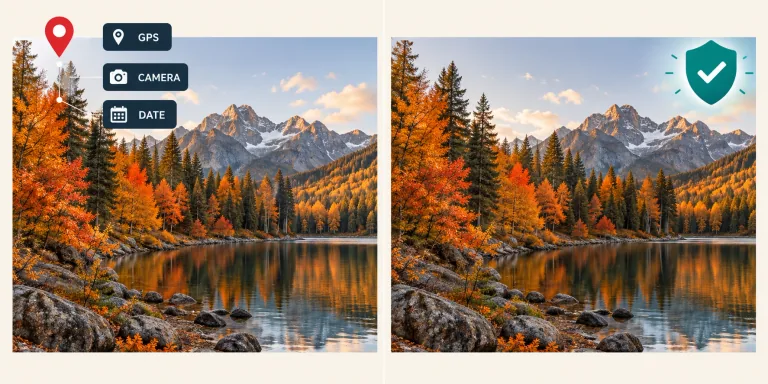
Your photos are sent over HTTPS when you submit an editing task. Files selected for preview stay in your browser until you generate. Submitted images are processed by our storage and AI providers to carry out your request; Ediroo does not sell your photos or use them to train public AI models. Saved tasks and results are accessible through your account in My Creations. Before using Remove Object from Photo for sensitive images, read our privacy policy for provider processing, retention, and deletion details, including how to contact support.

Yes. Remove Object from Photo supports selecting several separate distractions in one edit. You can also download a result, upload it again, and make a new selection for another pass. This is useful when objects overlap or sit against detailed architectural patterns. Review the first result before continuing, since each new generation uses credits. Keep your original file so you can compare changes and start again if a later edit needs adjustment.

Ready to Try Remove Object from Image with AI Inpainting?

Upload your picture, select the distractions, and generate an edit in your browser. Review the result before downloading, and use your account balance to plan further edits. Whether you are revisiting travel pictures or preparing a new product catalog, Remove Object from Photo keeps the editing workflow straightforward and your saved results within reach.

Remove Object from Photo Now
Ready to Try Remove Object from Image with AI Inpainting? — AfterReady to Try Remove Object from Image with AI Inpainting? — BeforeBeforeAfter