
Remove People from Photo with AI
Easily remove a person from photo backgrounds or remove people from image scenes. Use Brush or Prompt to keep your main subject; Auto removes everyone, including foreground people. Review the result before downloading.
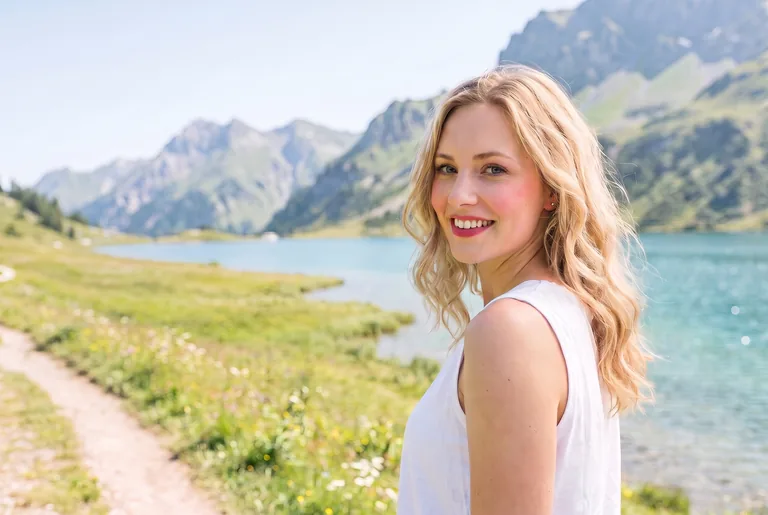
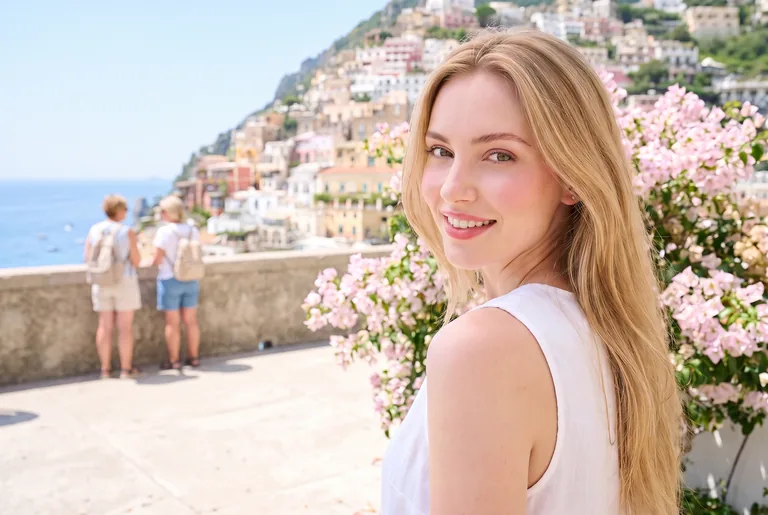
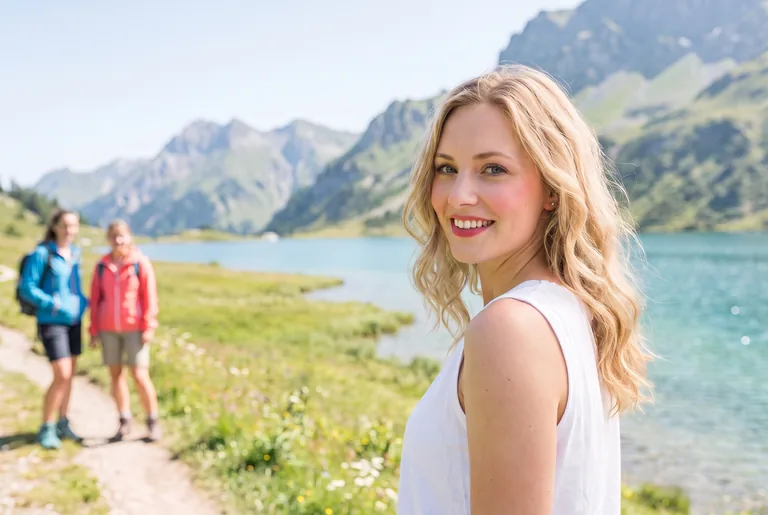 BeforeAfter
or drag and drop an image here
Supported: PNG, JPEG, JPG, WEBP (up to 30 MB)Photobomber Removal
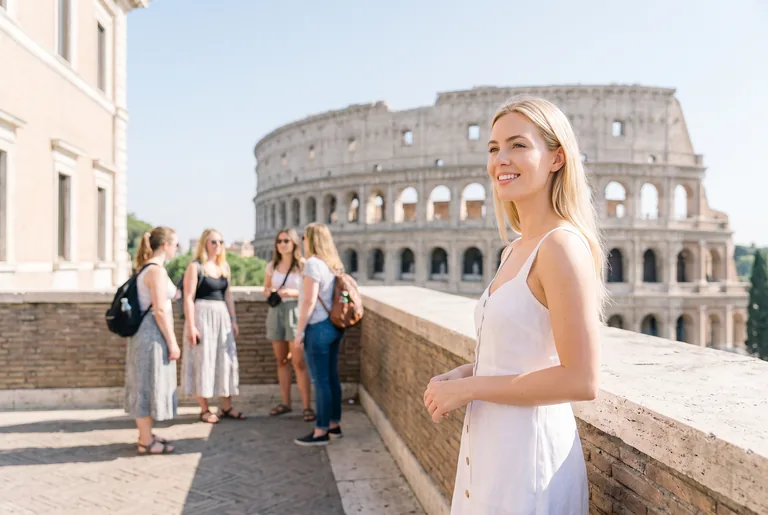
Easily remove people from photo backgrounds to eliminate unexpected tourists and passersby who walked into your camera frame.
Selective Editing
Use Brush or Prompt to target bystanders while asking the AI to keep your main subject. Inspect fine details after generation.
Natural Scenery Inpainting
AI generates replacement scenery using nearby textures and lighting. It estimates hidden details rather than recovering the original background.
Browser-Based Workflow
No complicated desktop software or manual layer masking required. Clean your pictures and remove people from photo files directly in your browser.
Realistic Scenarios to Remove People from Image
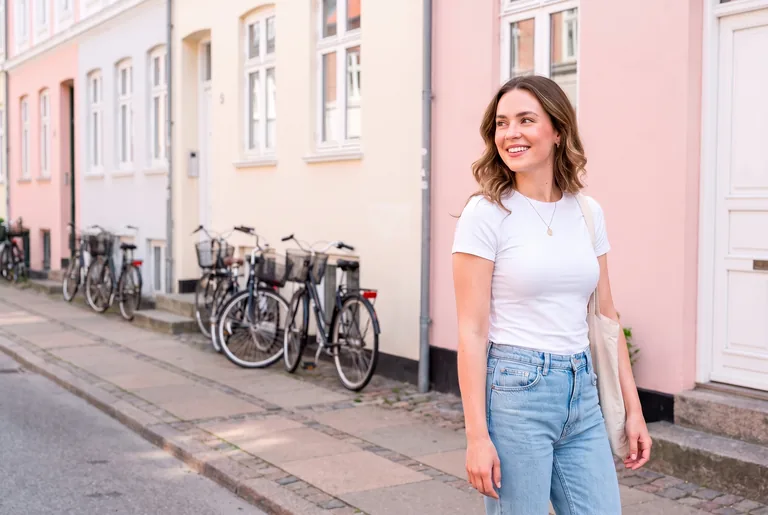
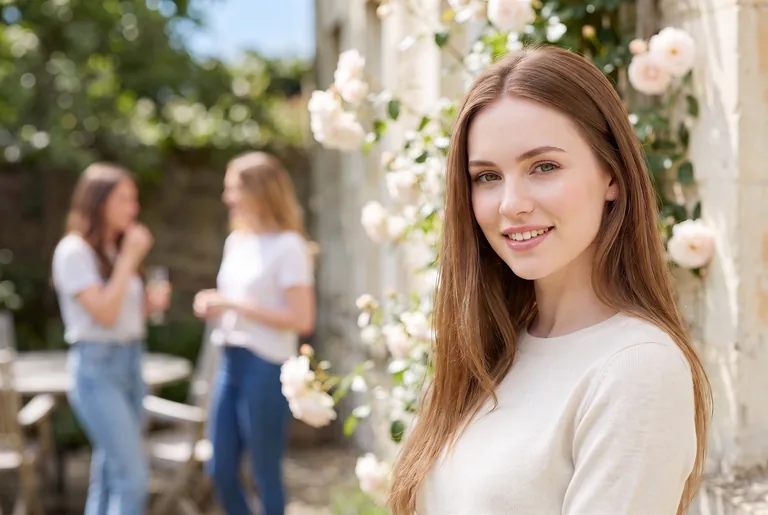
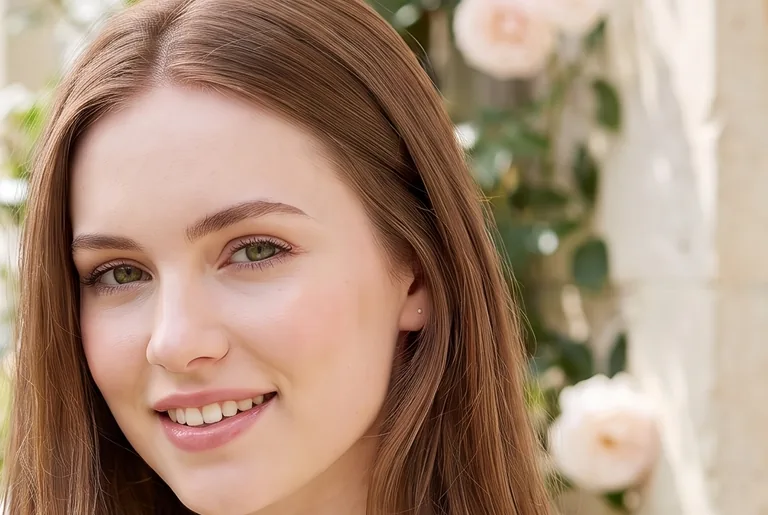
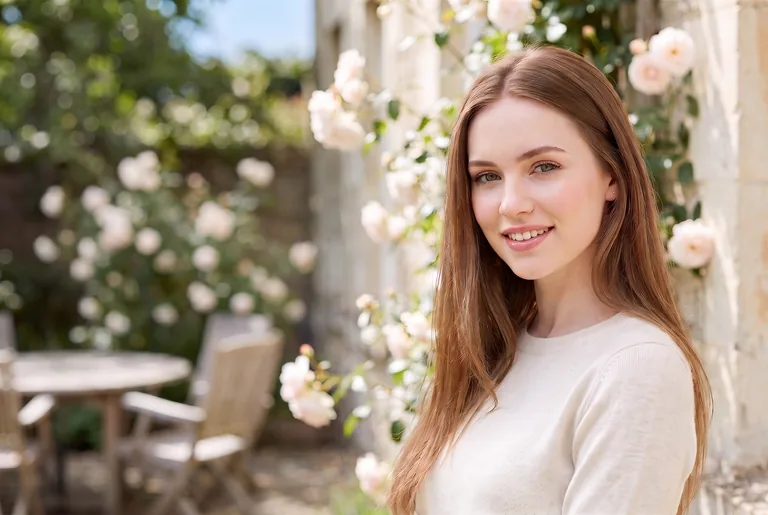
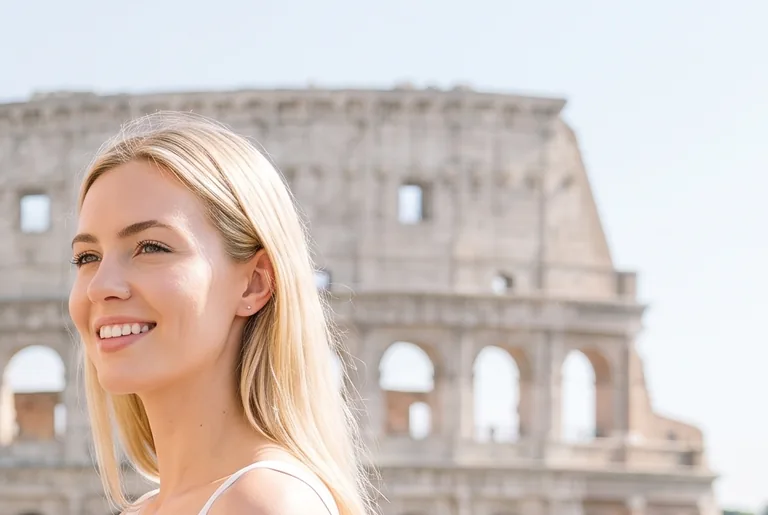
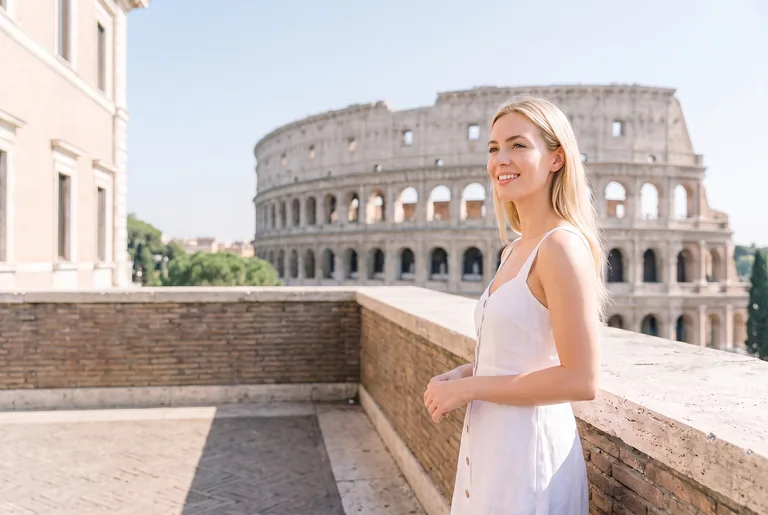
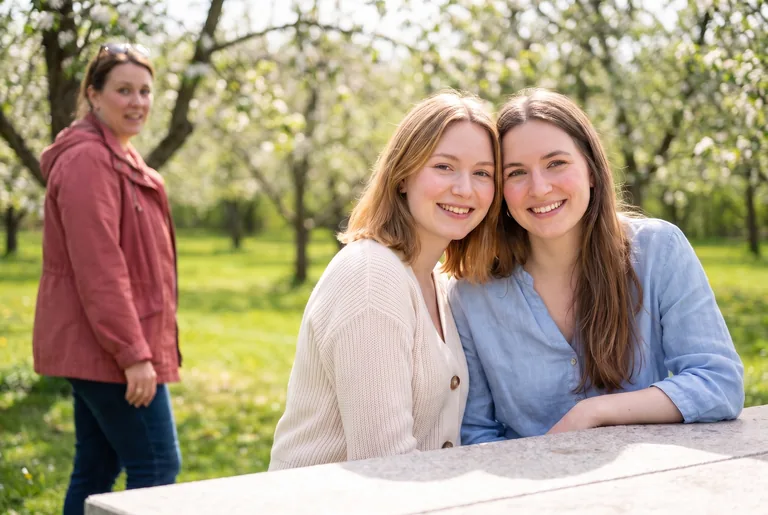
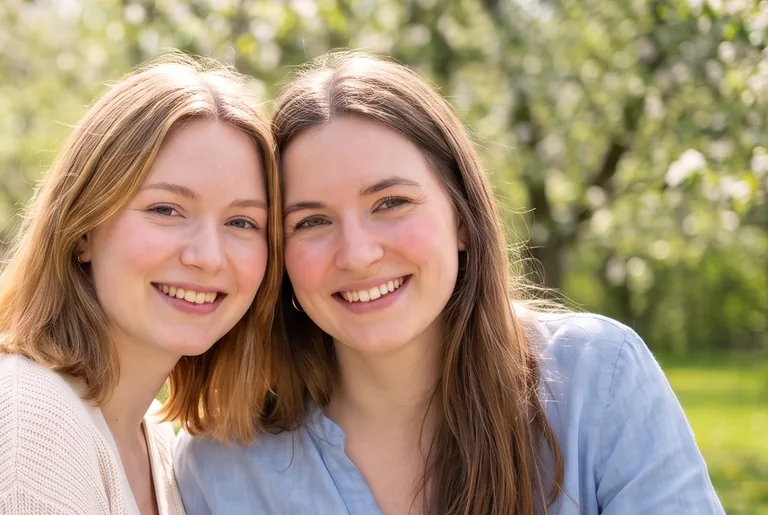
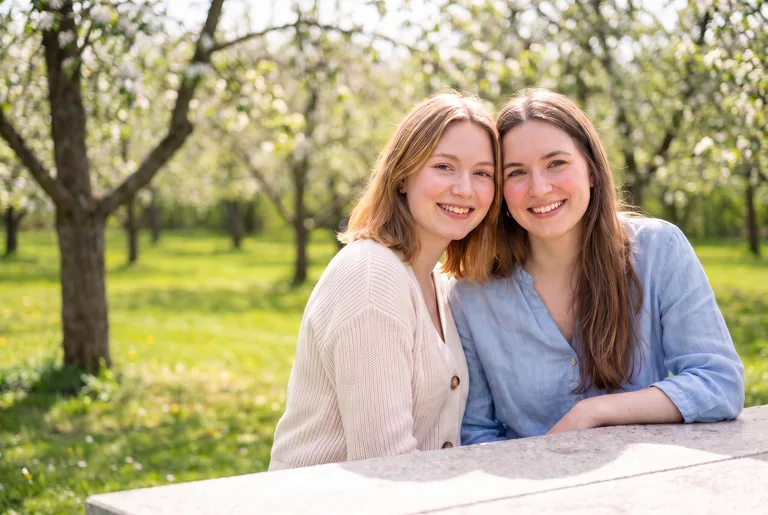
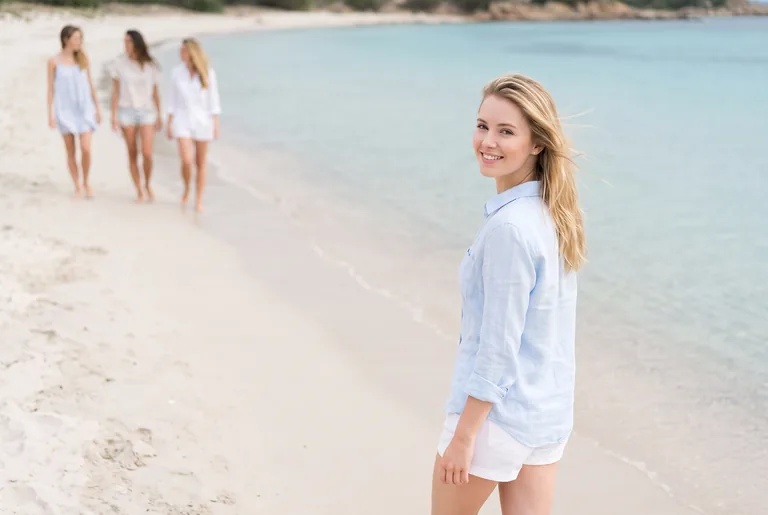
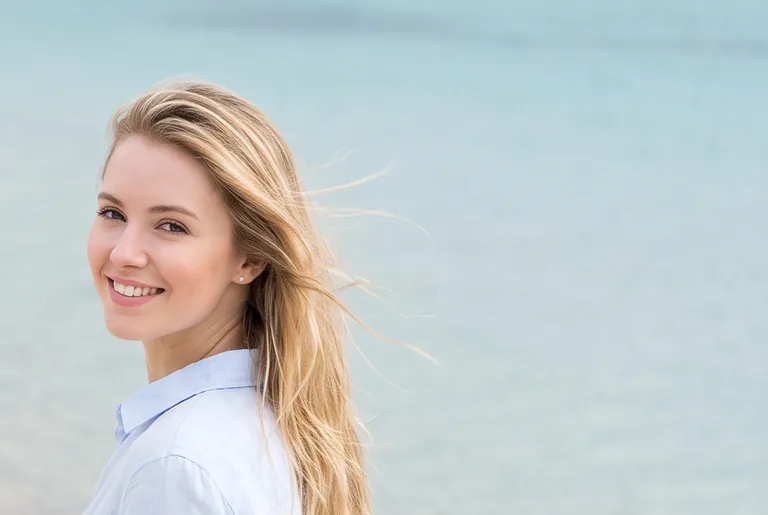
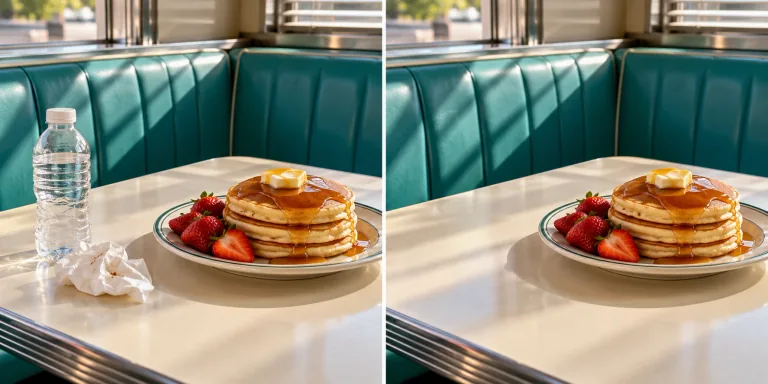
From crowded tourist landmarks to candid street moments, see how you can remove person from photo scenes in these before-and-after examples. Your result will depend on the photo, selection, and how much scenery is hidden.
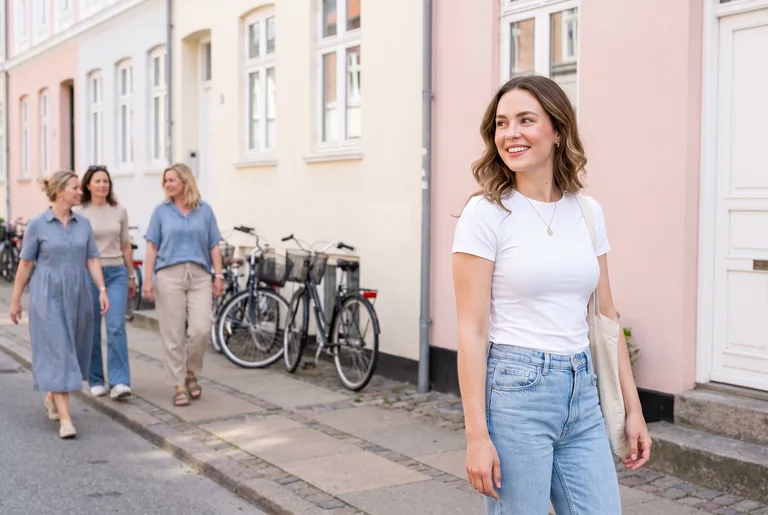
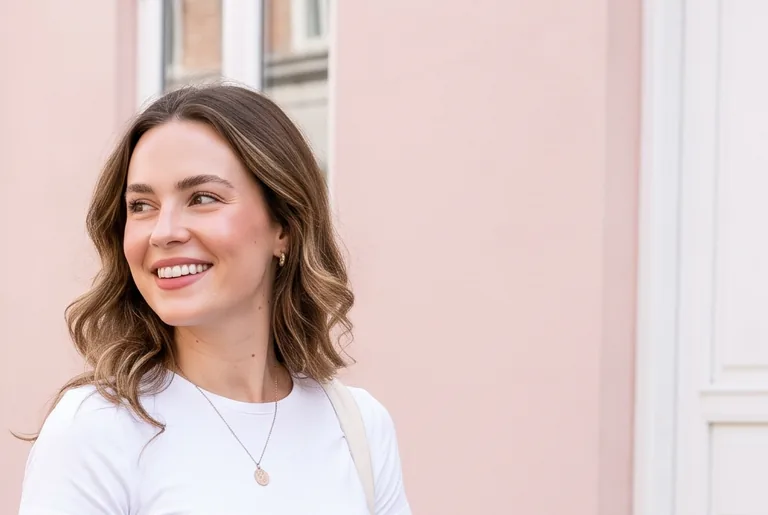
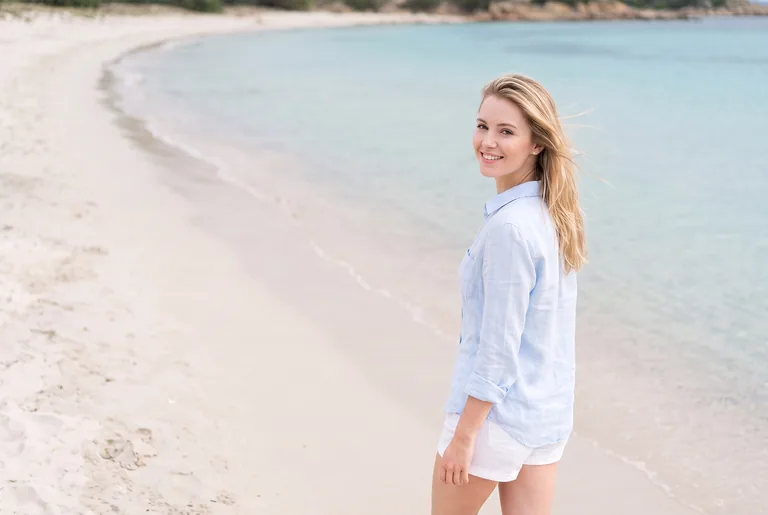
How to Remove People from Photo in Three Steps
Follow three straightforward steps to remove people from image files. Select your image, specify the passersby to erase, and download your clean result.
Smart Capabilities to Remove Person from Photo
Explore how modern inpainting lets you remove people from photo backgrounds and fill in missing scenery. Match the editing mode to your scene and inspect the generated details.
Clear Everyone from a Scene
Auto lets you remove people from photo scenes without manual outlining, including their shadows and reflections. Use it for scenery-only shots; it also removes foreground subjects.
Try People Removal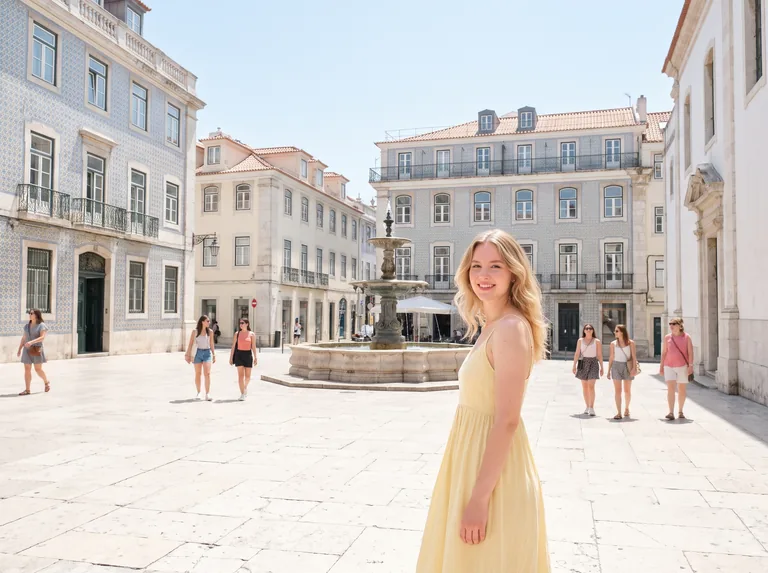
Landmark Scenery Recovery
Brush over visitors in front of a landmark. Check windows, railings, and repeated patterns afterward: reconstructed architecture may differ from the real scene.
Try People Removal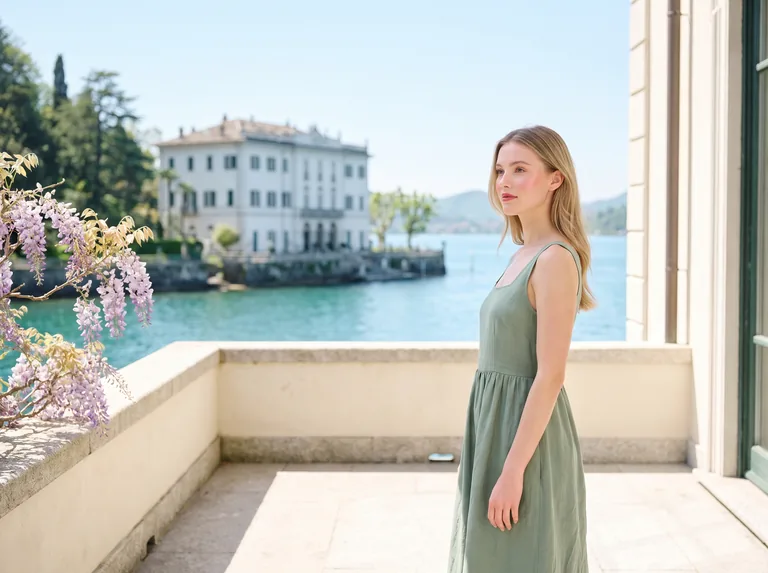
Street Background Cleanup
Remove people from photo compositions in busy urban areas by describing a passerby, such as the person on the left. If several people are close together, use Brush to make the intended area clearer.
Try People Removal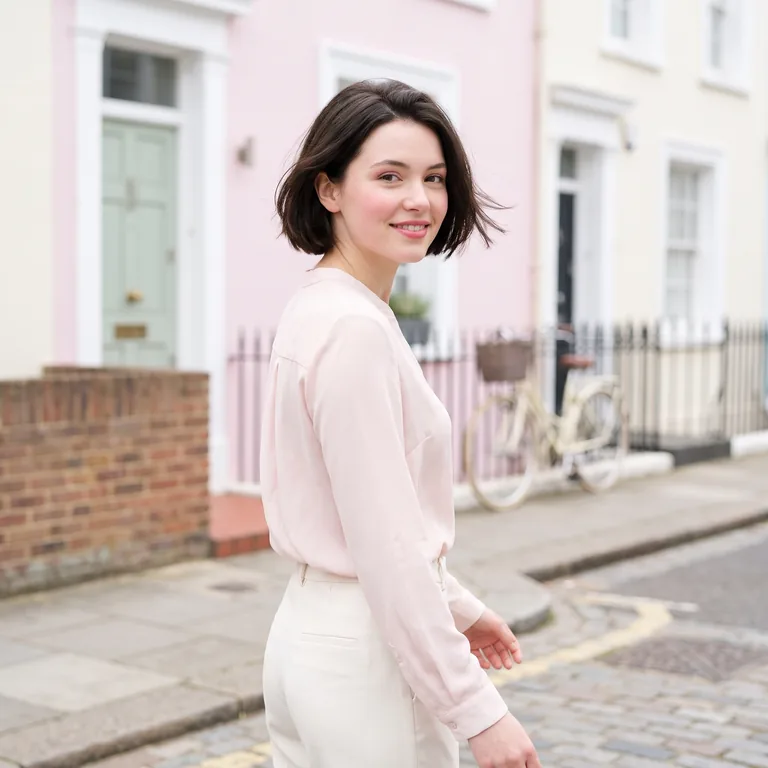
Natural Portrait Focus
Keep your brush selection away from the person you want to retain. Overlapping hair, clothing, and limbs may be regenerated and need another attempt.
Try People Removal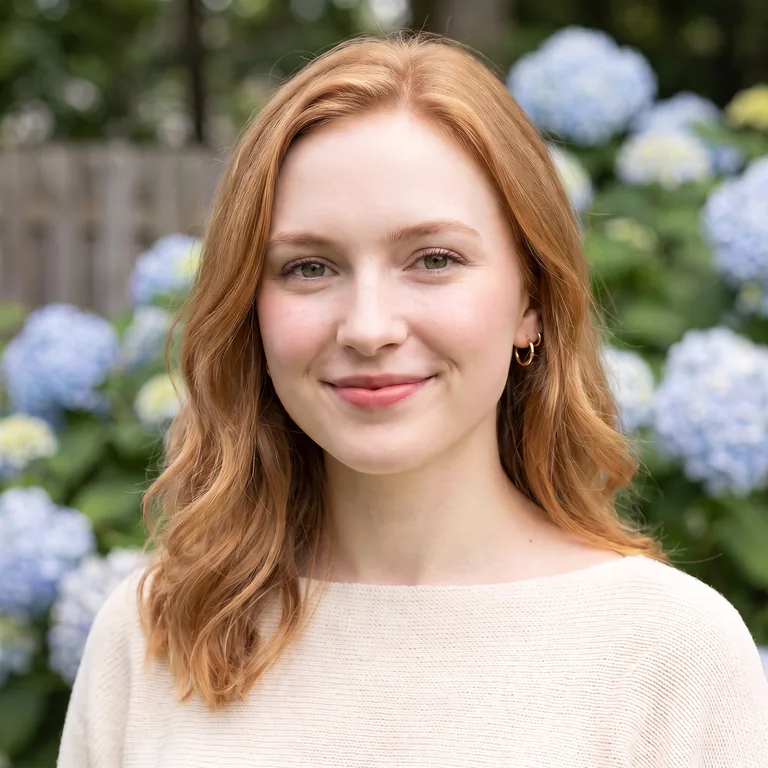
A Faster Way to Remove People from Photo
Compare browser AI inpainting with traditional tools when you need to remove people from photo files. Manual retouching offers closer control when exact textures or small details matter.
Ediroo AI Removal
- Remove people from photo shots with Brush, Prompt, or Auto according to who should remain.
- AI estimates the scenery behind the selected person.
- Works in a browser without a desktop installation.
- 8 credits per edit with Nano Banana Pro.
- Interactive split slider for instant before-and-after review.
- Completed edits are available in My Creations.
- Review generated details; results can vary between attempts.
Traditional Manual Retouching
- Select and adjust the removal area with editing tools.
- Clone or heal using textures you choose from the image.
- Available in both free and paid photo editors.
- Layer and masking skills give you more detailed control.
- Rebuild hidden architecture from available reference details.
- Complex scenes can require repeated small adjustments.
- Export and organize edited files in your chosen workflow.
Everyday Ways to Remove People from Images
Explore five common situations where you can remove unwanted people from photo compositions, from holiday albums to professional creator content. Keep the original photo and review each edit before sharing it.
Travel Photography
Iconic monuments and viewpoints often have crowds. When you remove people from photo backgrounds, check stonework, railings, and horizons where the person used to stand.
Portrait Photography
Draw attention to your subject by selecting distant bystanders. Use Brush or Prompt, since Auto would remove the portrait subject too.
Social Media Posts
Prepare clean shots for social feeds. Remove people from photo compositions without aggressive cropping, and compare the edit with the original before posting.
Creative Projects
Prepare background images for a mockup or moodboard. Inspect the result at its intended display size and use photos you have permission to edit.
Personal Memories
Remove people from photo memories by selecting accidental photobombers in family pictures. Save a separate edited copy so the original memory remains available.
How Much Does an Edit Cost?
This tool uses Nano Banana Pro and costs 8 credits per generation. The same model is used for Brush, Prompt, and Auto. Check your balance and the displayed cost before submitting.
Frequently Asked Questions on How to Remove People from Photo
Find clear information about photo formats, credit costs, privacy, and how to remove person from photo free with available signup credits.
To remove people from photo backgrounds, use Brush to mark the unwanted person, or Prompt to describe who to remove and who to keep. Avoid Auto when anyone should remain: it removes all foreground and background people. Keep the selection away from your subject and check faces, clothing, and edges after generation.
If you want to remove people from photos online free, you can use any available signup credits toward an edit. Sign in to check your balance; this tool uses 8 credits per generation with Nano Banana Pro. You need enough credits for the full edit before submitting. Further edits require additional credits, and trial availability depends on the current signup offer.
It can. Brush and Prompt instruct the AI to preserve areas outside the edit, but they do not guarantee pixel-identical faces, hair, or clothing. Keep your selection narrow and compare the output with the original. If a bystander overlaps your subject, expect some details to be regenerated.
Upload a PNG, JPEG (JPG), or WebP image up to 30 MB. Convert camera RAW files to one of those formats first. The generated image may have different pixel dimensions from the original, so check the downloaded file before using it for large prints.
AI generates plausible replacement pixels from the surrounding scene. It cannot recover the exact scenery hidden behind a person. Simple backgrounds are generally easier to reconstruct than text, detailed architecture, or overlapping bodies. Check repeated patterns, shadows, and reflections before keeping the result.
You can try to remove people from photo shots with overlapping subjects, but the AI has to invent any hidden parts of your subject. Faces, hands, hair, or clothing may change noticeably. Use a precise brush selection and review at full size. If the result looks wrong, keep the original or use a different photo with less overlap.
Submitted tasks and generated results appear in My Creations. A file selected without starting generation remains a local preview. Generating an edit uploads the image for processing; read the Privacy Policy for details about storage and service providers. Keep your own copies of photos and results you want to retain.
This page uses Nano Banana Pro at 8 credits per edit, with the cost shown before submission. There is no model selector on this tool. Confirmed failed tasks have their credits returned; a completed image that you dislike is different from a failed task. A new generation uses credits again.

Ready to Remove People from Photo?
Upload your shot to remove person from photo backgrounds with Ediroo AI. Select the unwanted people and review the edit before saving it.
Start Removing People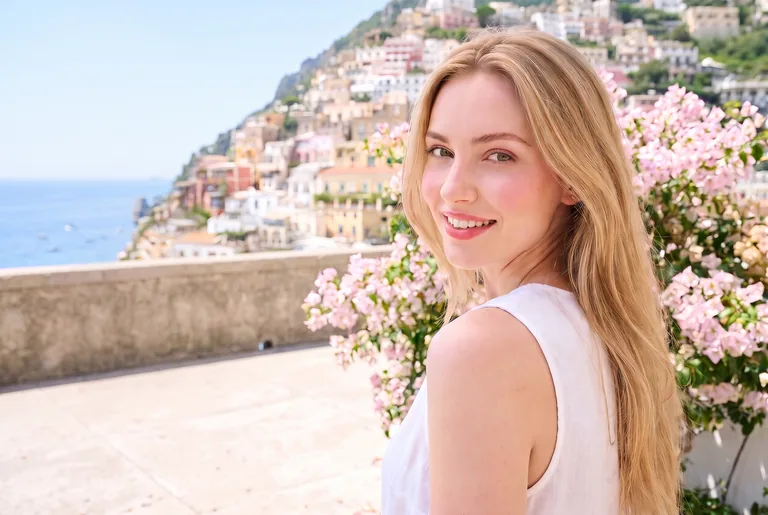
 BeforeAfter